Explore the Upgraded Catalog!
Pikes Peak Library District (PPLD) improved our patrons' experiences through an upgrade to one of its major systems.
The Integrated Library System (ILS) is a behind-the-scenes software tool that allows patrons to check-out books, reserve titles, and manage their Library experience.
To learn more about the benefits of the new system and discover how to navigate through the catalog, see below. We've provided both video and written instructions.
Using the Catalog
FAQs
CATALOG HOME PAGE: Quick Overview
The catalog is found at Catalog.ppld.org
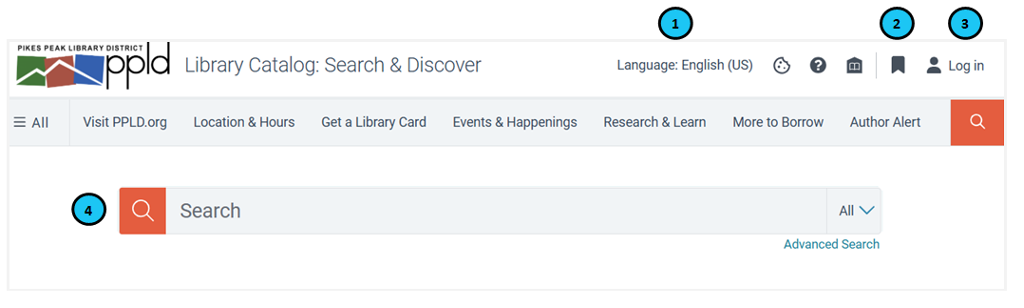
- Choose Language: English or Español.
- Access your Bookmarks once you are logged in. (See below for login instructions.)
- Log in to “My Account” with your library card number and password/PIN. This has not changed. It’s the same information from the old catalog.
- Search the catalog.
- Click on the log in icon on the right side of the page
- Enter your library card number and Password/PIN.
- Click on Account Portal button
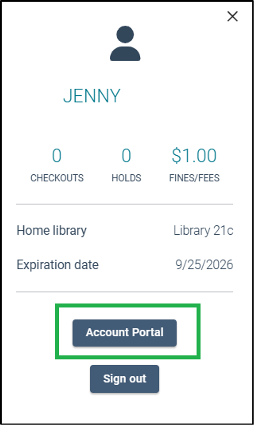
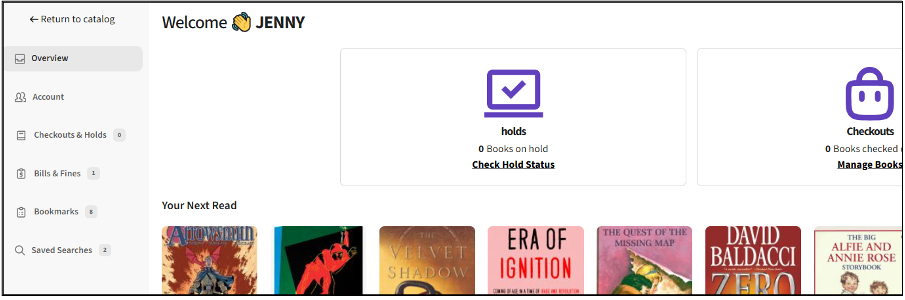
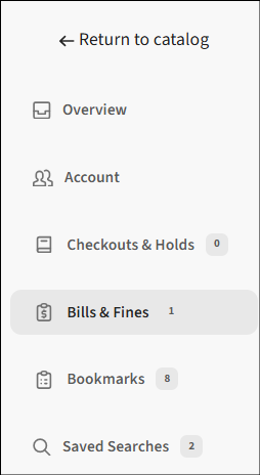
- You will see an overview/welcome screen. On the left side is a menu of account options.
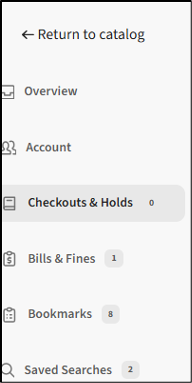
- Click on Checkouts & Holds in the left-side menu.
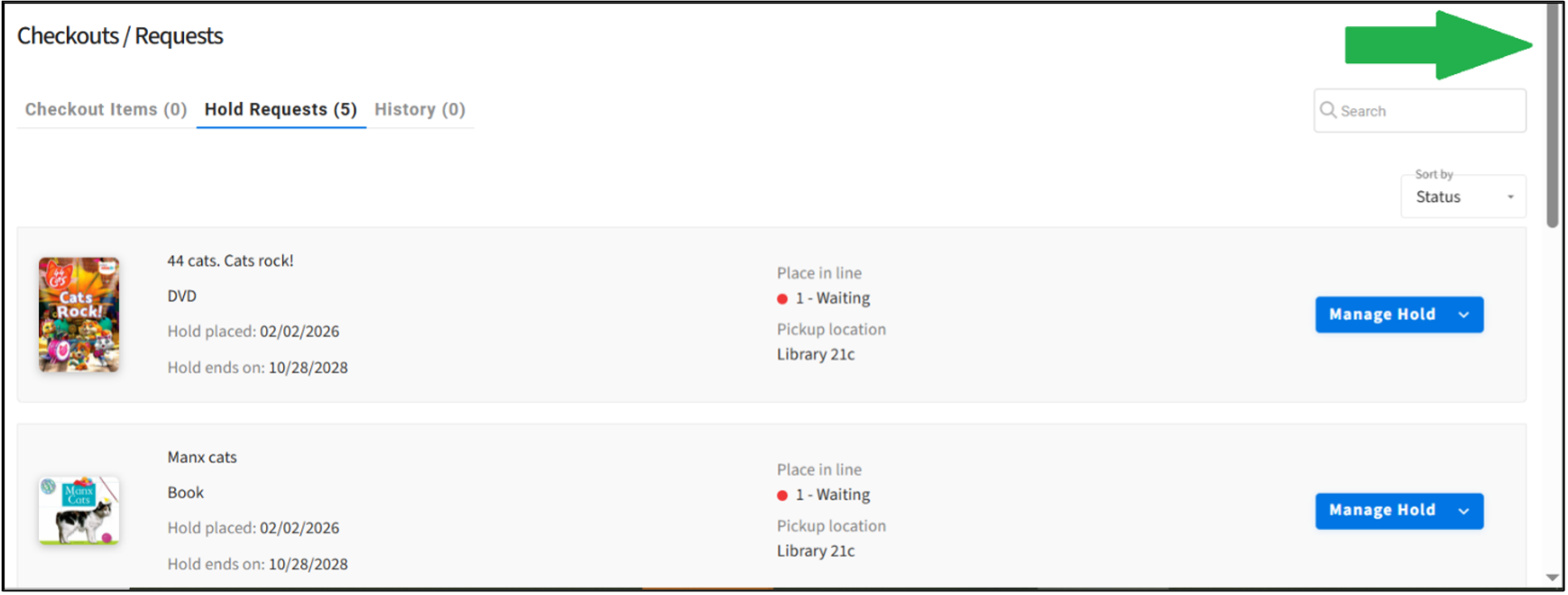
- Select the tab for Checkout Items or Hold Requests. Use the scroll bar on the right to view your entire list.
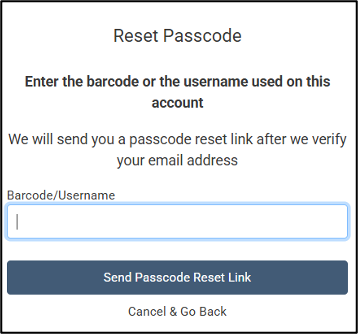
If you forget your password, reset it by clicking “I forgot my password/PIN” in the login box. A “Reset Passcode” box will appear and prompt you to enter your library card number. A reset link will be sent to the email address on your account. If you do not have an email address listed on your account, please visit any PPLD location with your picture ID.
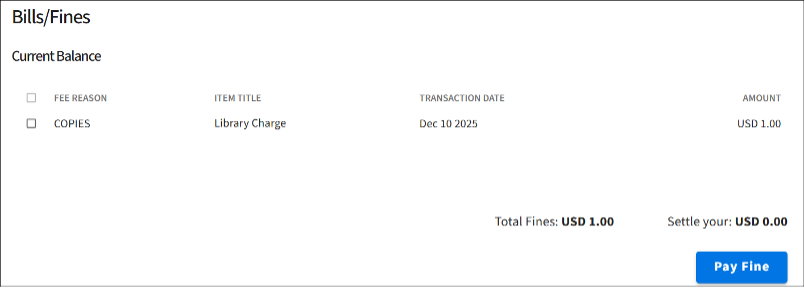
- View and pay bills
- In the left-side menu, click on Bills & Fines
- You will see the bills listed and the “Pay Fine” button to take you to the payment site.
- In the left-side menu, click on Bills & Fines
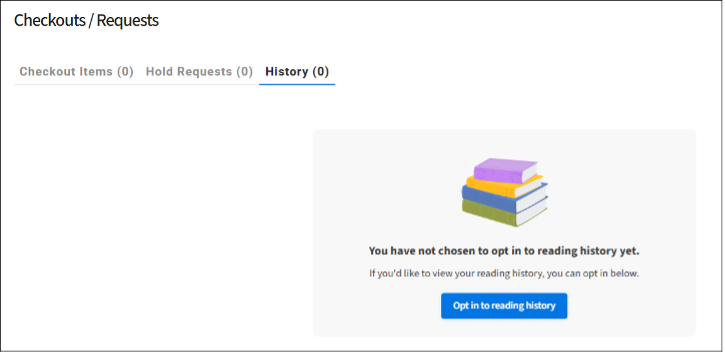
- Opt-in to save your reading history and view your reading history
- Select Checkouts & Holds in the left-side menu.
- Select the History tab. Click on the “Opt in to reading history” button
- The “Edit Account Information” window will open on the right side of the page. Scroll down to the “Reading History” check box.
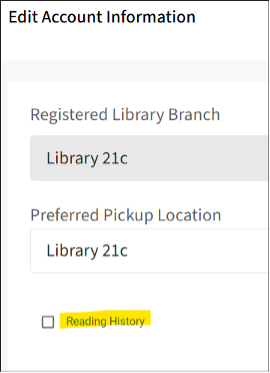
- After checking the box, a confirmation window will come up.
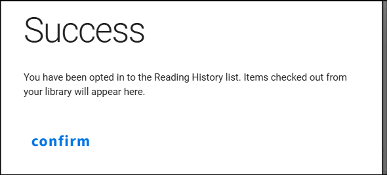
Click “confirm” and then close the Edit Account Information window. (“Save” is not needed.) - Items checked out after opting in to Reading History will now be visible in the History tab of Checkouts & Requests.
- Reset your password
- From the Account Portal, click on Account in the left-side menu. Select the edit icon (pencil) beside your name.
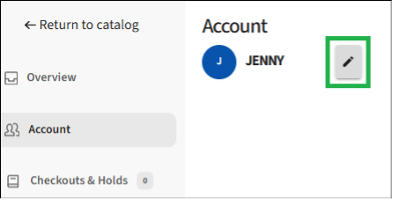
- The “Edit Account Information” window will open on the right side of the page. Scroll down to see your library card number and the password/pin reset option.
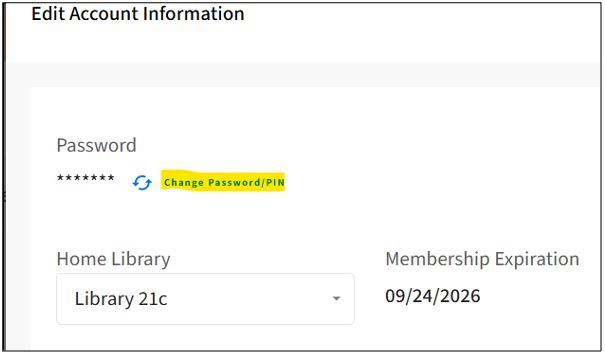
- Click Save at the bottom of the window.
- From the Account Portal, click on Account in the left-side menu. Select the edit icon (pencil) beside your name.
- Change your preferred holds pickup library
- From the "Edit Account Information" window, scroll down to "Preferred Pickup Location" and select your preferred library.
- Click Save at the bottom of the window.
SEARCHING THE CATALOG
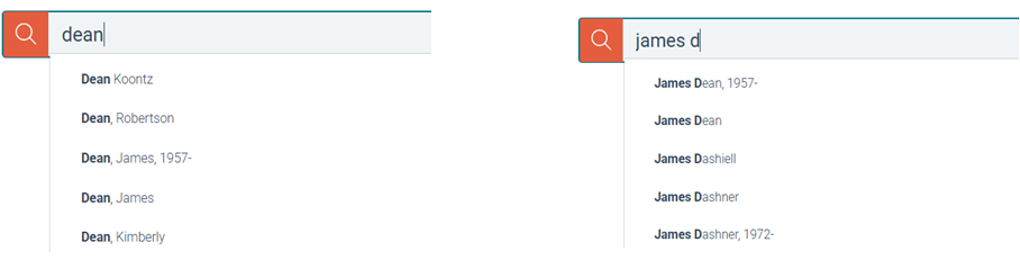
The catalog will offer titles and subjects matching the words you type in the search box. You can select one of the suggestions to limit your search or hit enter after typing your search words to get all possible results.
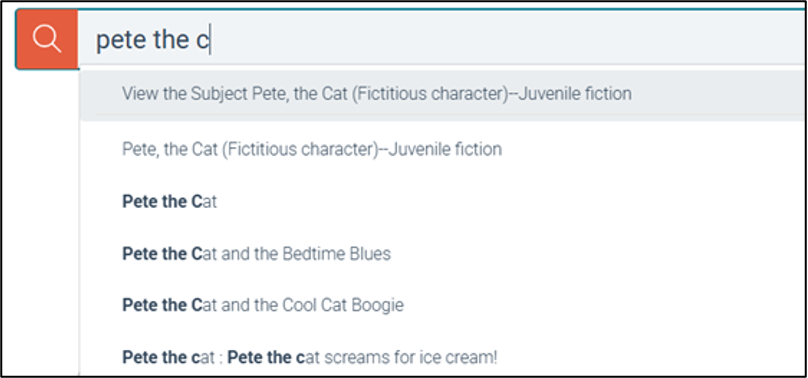
The catalog will suggest authors as you type in a name, whether you start with the author’s first or last name.
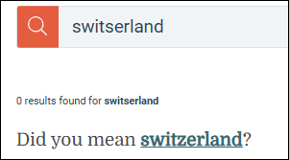
If you misspell a search term, the catalog will offer suggestions.
SEARCHING THE CATALOG: Refining Results
When a search yields many results, it is helpful to refine your search.

You will be able to refine your results by availability, date, format, specific collection, age group, author, subject, language, and Library. Be sure to click “Apply.”

SEARCHING THE CATALOG: Details Page
When you select a title in the search results, you will see the “Details” page for that title.
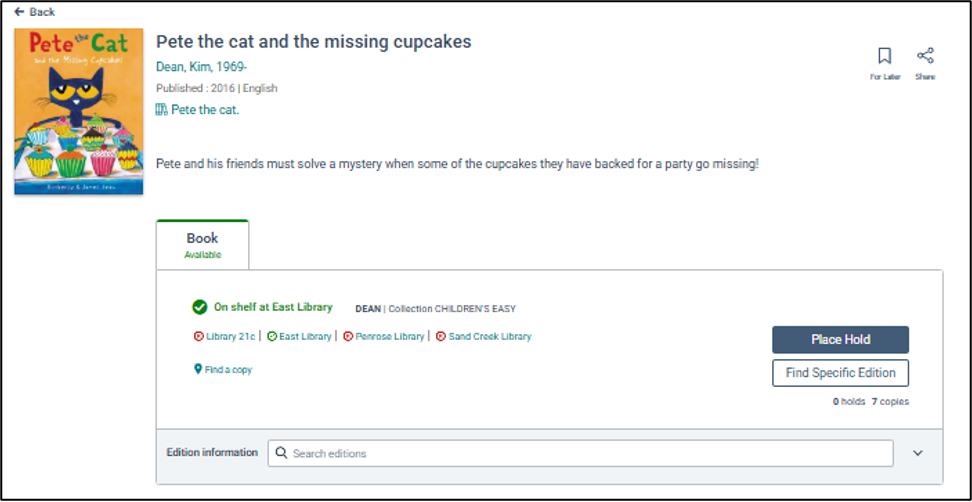
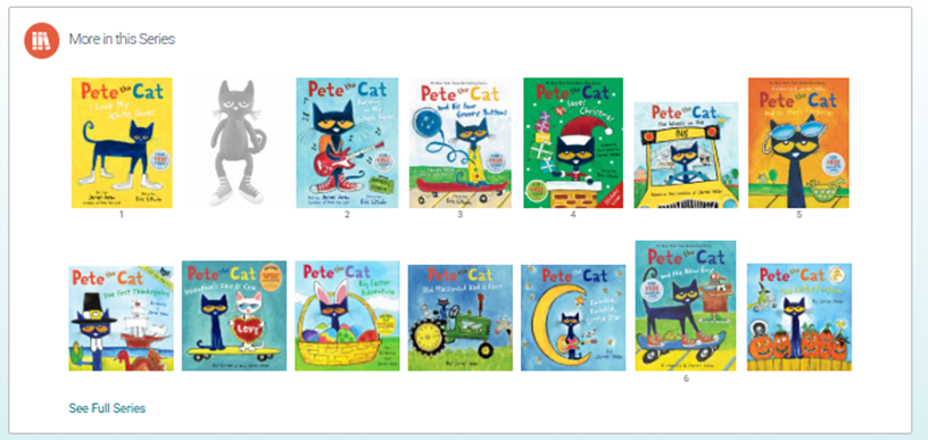
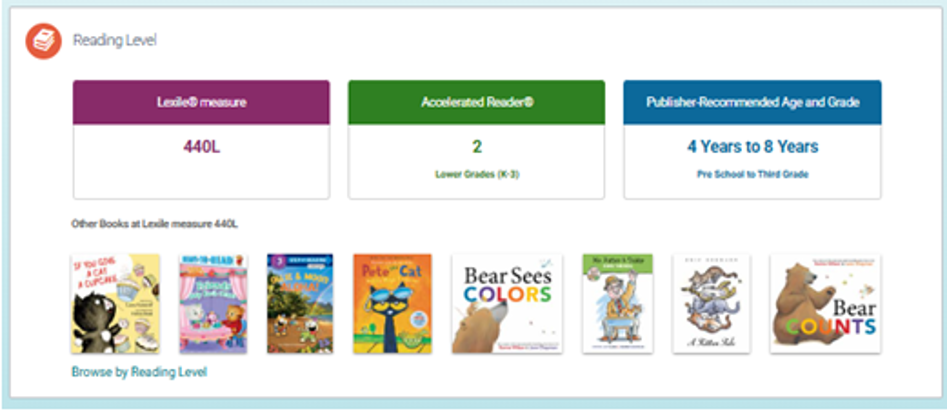
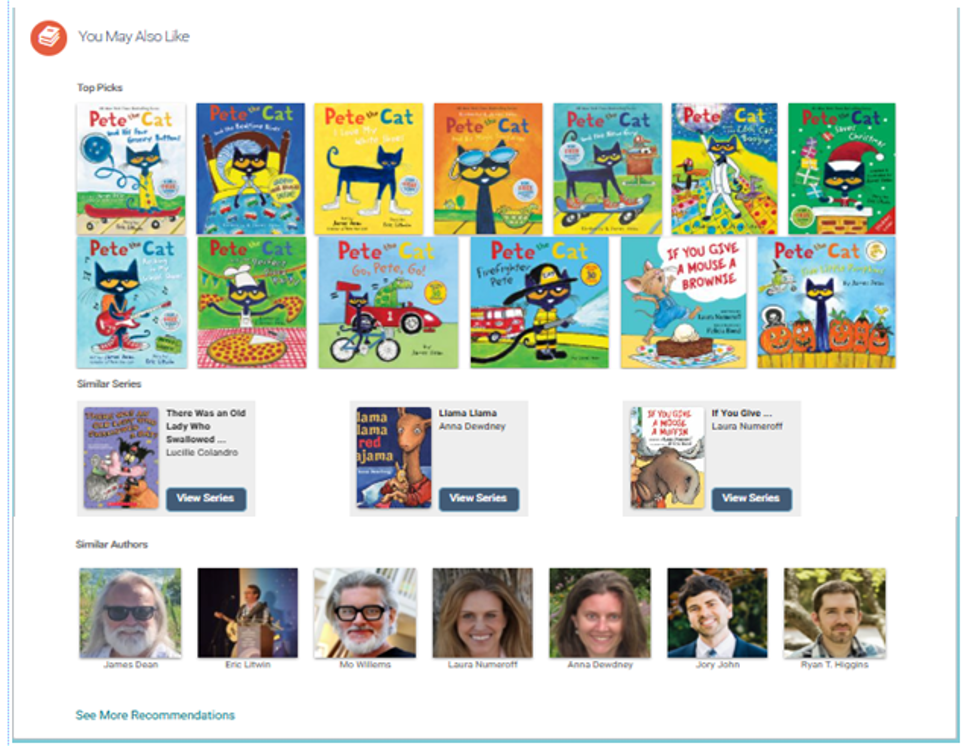
Scroll down to find additional titles in a series, similar titles, similar authors, reading level, and other resources to help you explore the PPLD collection.
FORMAT ROLL UPS
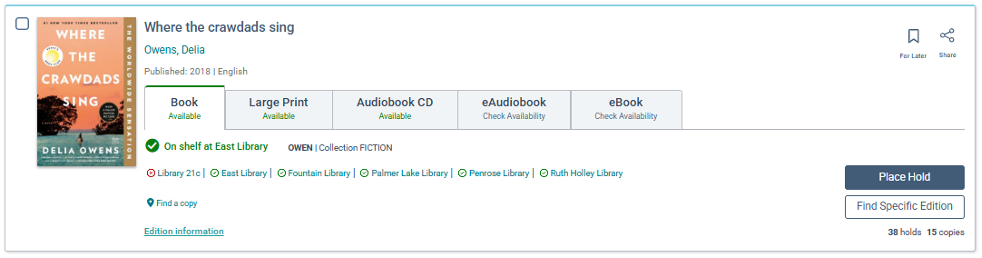
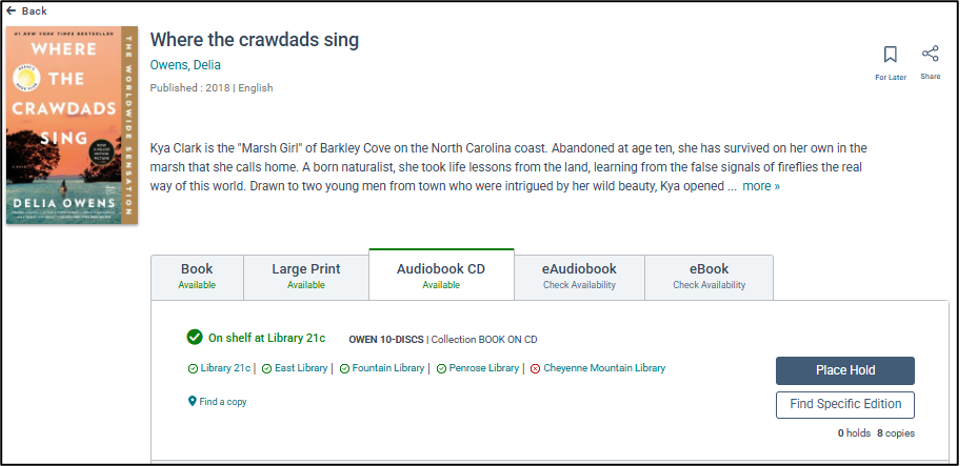
When you view search results, similar formats of a title are grouped in one catalog record. For example, book formats are grouped together, whether they are print, audiobook, large print, or eBook. Other items related to that title are in a different record.
*Note that eBook, eAudiobook, and eMagazine titles allow you to place holds or check out from OverDrive through the catalog.
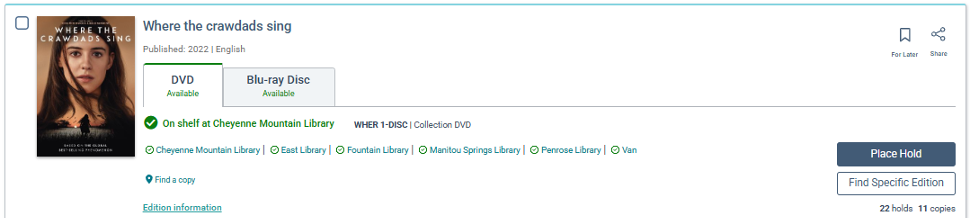
Video formats of a title are grouped together in a different catalog record.
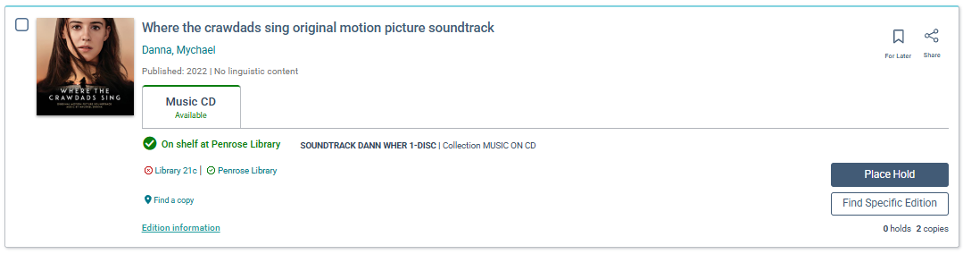
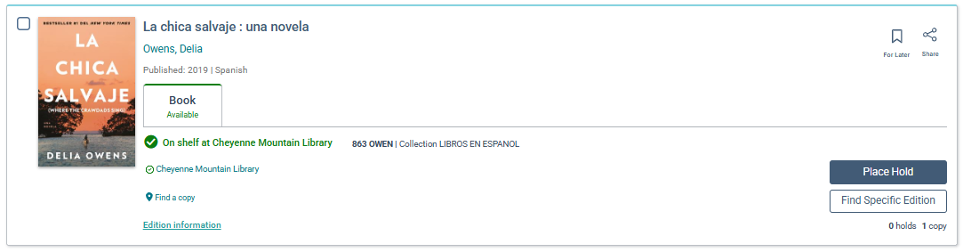
If there is a soundtrack associated with the title, or if PPLD has copies of the title in languages other than English, they will each have their own record.
PLACING A HOLD
To place a hold on a title with multiple formats in the record, click on the tab with the format you want. Next, click “Place Hold.”
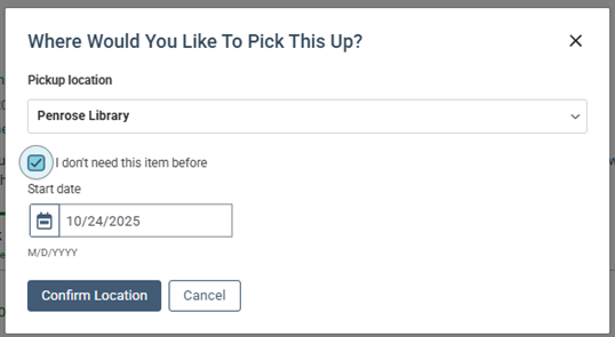
Confirm your Pickup location. You also will be given the option to delay your hold to a later date.
You will receive confirmation.

BOOKMARKS: Saving a Title for Later and Accessing Your Saved Titles
You have the option to bookmark (save) any item in the catalog, which is different than placing a Hold on an item. You can save the item to a list you have already created in your account or to a new list so that you can easily find it later.
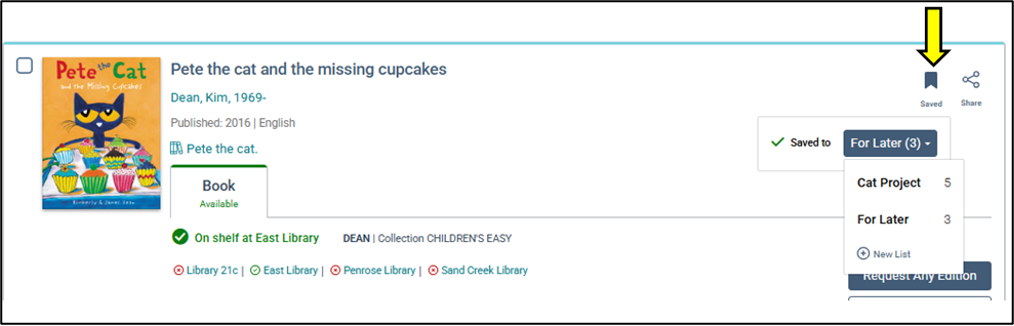
Access your Bookmarked items and Lists by clicking on Bookmarks in the left-side menu of the Account Portal.
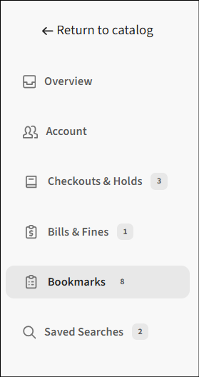
The Bookmarks page first displays your bookmarked titles in a carousel, and you can choose to see all bookmarked titles or only available bookmarked titles.
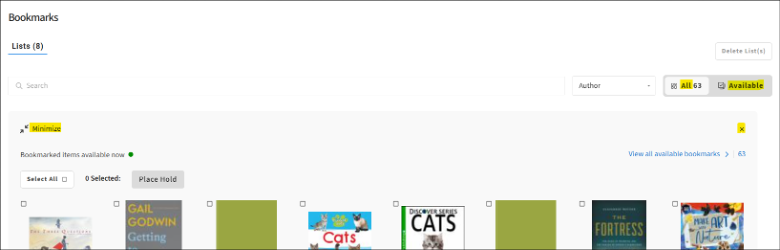
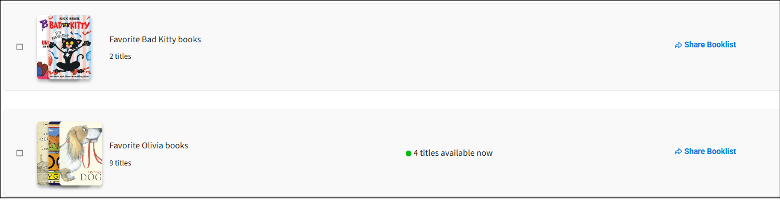
You can minimize or close that carousel. Under it are your lists. You can also choose to see all items in your lists or only available items in your lists.
SHARING TITLES
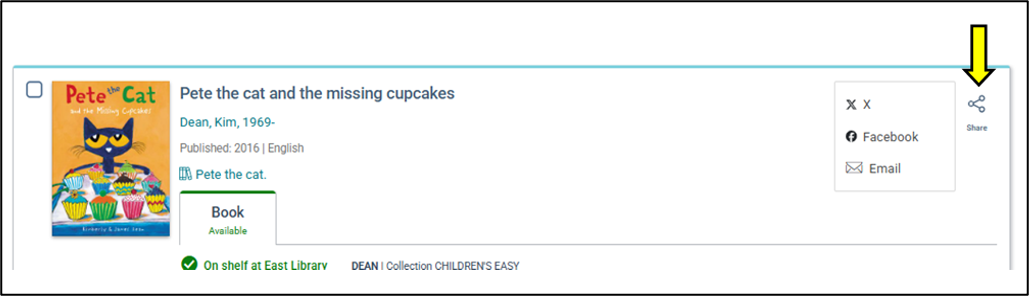
You have the option to share any title in the catalog on social media or by emailing it to someone by clicking the “Share” icon. If you choose to email it, the recipient will receive an email with the title, author, and a link to the title in the catalog.
You can share or save a search by selecting the Share or Save Search icons that display above your search results.

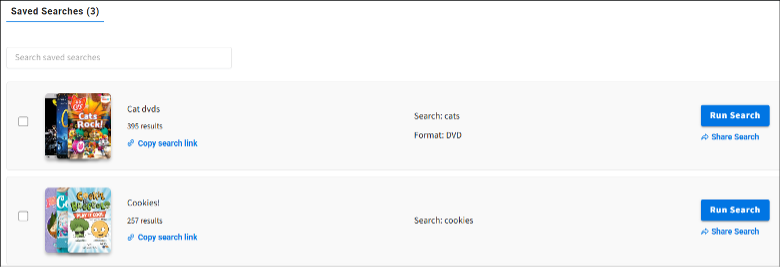
Once you save a search, you can retrieve it by clicking on the Saved Searches option in the left-side Account Portal menu. You can run the search again, and there are more options for sharing the search from this page.