
Digital Collections
Search Tips
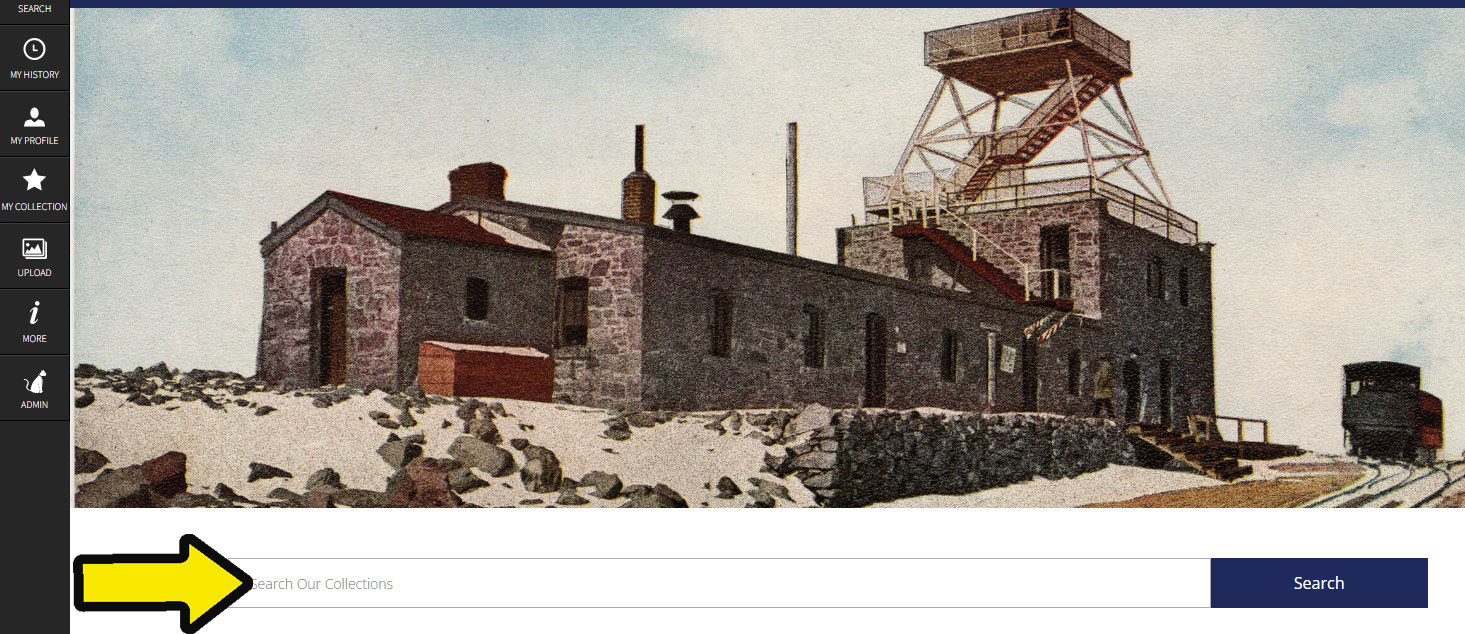
Looking for something specific?
If you are looking for a specific topic, such as name, place, or subject, use the search bar on the homepage for a simple search. This will look for all words in the search query and display with most relevant results first.
Advanced Search
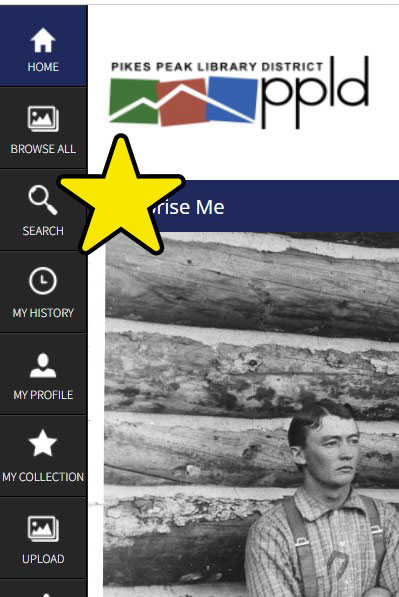
- Select the ‘Search’ icon on left-hand menu (magnifying glass)
- Best for filtering and refining results using drop down menus
- Specify date ranges, formats, and types of keywords
- For example, for photos of the Hill Climb between 1930-1940, select format as “Photograph” and enter the date range as 01/01/1930 to 12/31/1940. Once results are returned, you can browse or refine results by using Add or Restrict Keywords, or by utilizing options on the left “Filter By” menu.
Item Types
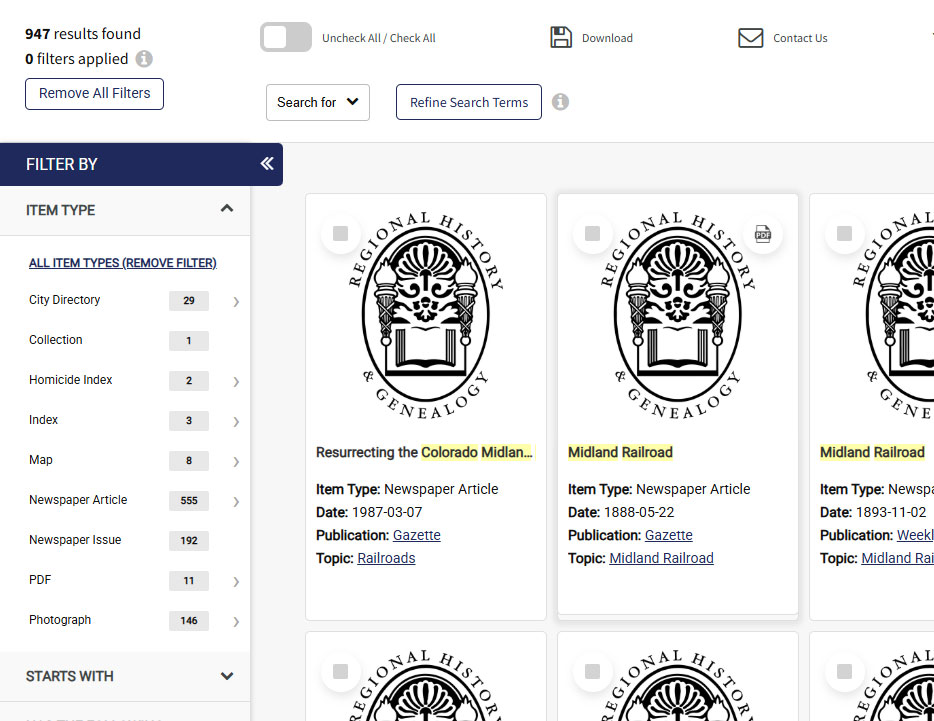
Item types offer a powerful tool to explore search results or narrow down the ‘Browse All’ feature.
On the menu to the left of search results, expand ‘Item Type’ to select specific formats such as City Directory, Map, Photograph, or Collection.
Clarification of select Item Types
Newspaper Article: represents individually indexed articles from local Pikes Peak region newspapers. Can be requested for digitization.
Newspaper Issue: Fully digitized issues of newspapers. Keywords from search will be highlighted.
Document: Scanned textual material from various archival collections.
Genealogical Records: Scanned records such as Colorado Springs Death Registry, Church records, and Veterans’ Grave Registration.